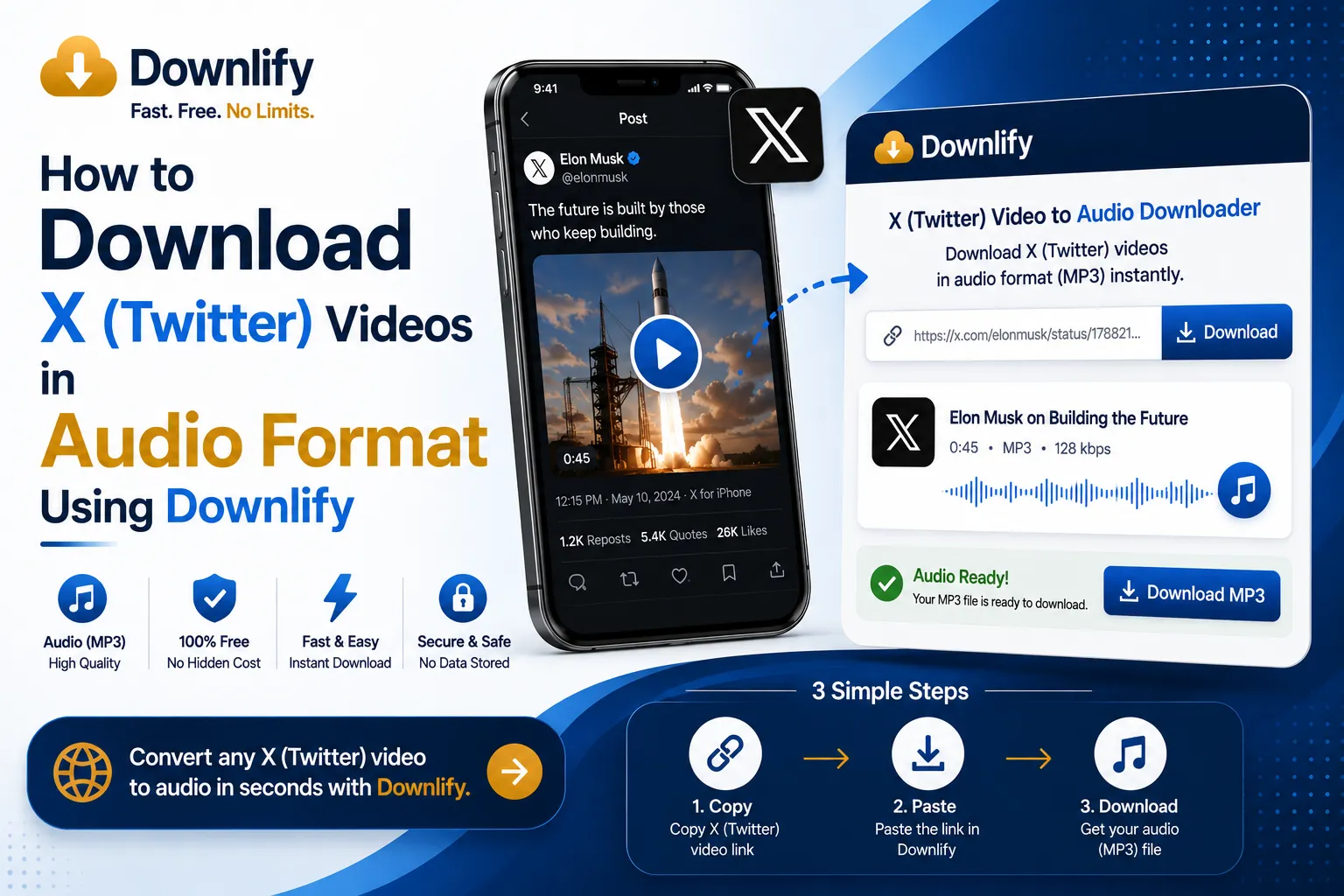
If you found a music track, an interview, or a podcast clip on X (formerly Twitter) and want to save it as an audio file for offline listening, Downlify makes the process incredibly simple. Follow these quick steps to convert any X video into high-quality audio.
Step 1: Locate the Video on X.com
- Open X.com on your computer or mobile device.
- Scroll to the post containing the video you want to download.
Step 2: Copy the Link to the Post
- On Desktop: Click on the Share icon (the tray with an up arrow) at the bottom right of the post, then select Copy link. Alternatively, click on the post to expand it and copy the URL straight from your browser's address bar.
- On Mobile: Tap the Share icon beneath the tweet and select Copy Link.
Step 3: Head Over to Downlify.com
- Open a new tab in your web browser and go to downlify.com.
- On the homepage, you will see a prominent, clean search/input bar designed for pasting URLs.
Step 4: Paste the Link and Analyze
- Click or tap inside the input field and Paste (Ctrl+V / Cmd+V) your copied X.com link.
- Click the Download (or Analyze) button next to the input field. Downlify will quickly process the link to extract the media files.
Step 5: Select the Audio Format
- Once the video options load, scroll past the video quality options to find the Audio / MP3 download section.
- Choose your preferred audio quality (such as 128kbps, 256kbps, or 320kbps for maximum clarity).
Step 6: Download and Save
- Click the Download button next to your chosen audio format.
- A pop-up may ask where you'd like to save the file, or it will automatically download straight to your device's Downloads folder.
💡 Pro Tip: Downlify handles extraction directly on the cloud, ensuring your audio conversion finishes in seconds without slowing down your PC or mobile device!
Comments (0)
Leave a Comment