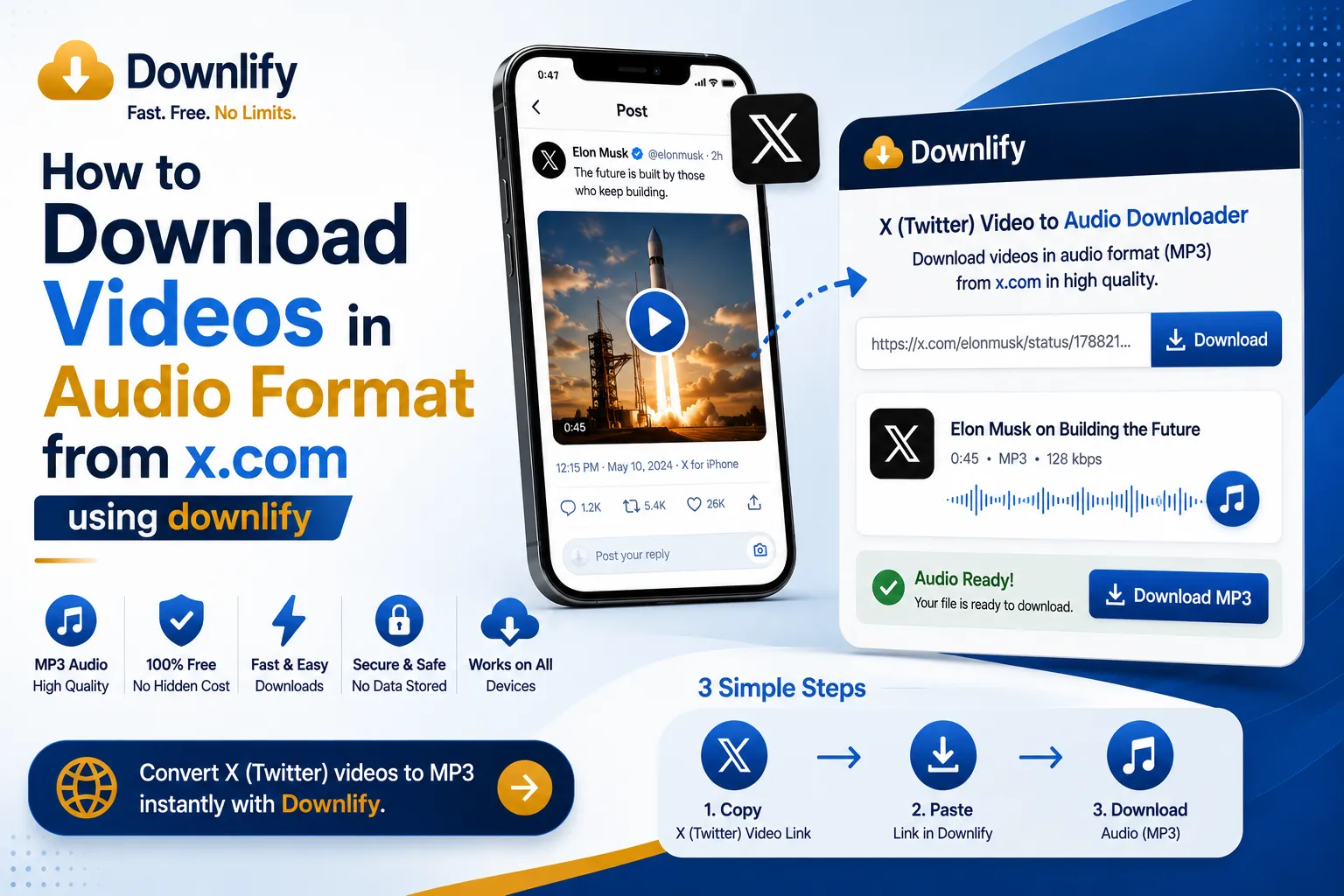
To download audio from an X (formerly Twitter) video using Downlify, follow these steps:
- Locate the X Video: Open X.com and find the post containing the video you want to convert to audio.
- Copy the Link: Click the "Share" icon (the upward arrow) at the bottom right of the post and select Copy Link. Alternatively, copy the URL directly from your browser's address bar while viewing the post.
- Visit Downlify: Go to downlify.com in your web browser.
- Paste the URL: On the Downlify homepage, locate the input field (usually labeled "Paste link here") and paste the X link you copied.
- Process the Link: Click the Download or Search button next to the input field. The site will analyze the link and generate various download options.
- Select Audio Format: Look for the list of available formats. Find the option labeled MP3 or Audio. Click the download button next to that specific format.
- Save the File: A new tab may open, or a browser prompt will appear. Right-click the player and select "Save Audio As..." if it starts playing, or simply confirm the download location on your device.
Note: Always ensure you have the right to download the content or that it is for personal use, as downloading copyrighted material without permission may violate terms of service or copyright laws.
Comments (0)
Leave a Comment